Woocommerce offers a well designed free template for everyone called, the Storefront. By adding the CSS codes below, you can remove the credits, “Storefront designed by WooThemes” without editing or deleting a line of the core programmings. So instead of deleting anything, you are just hiding the text actually. So it’s a risk free, easy and fast!
Place the CSS line on the WordPress backend where CSS is located:
(Go to the Backend page -> Appearance -> Editor)
footer .site-info {
display: none !important;
}
footer .col-full:after {
content: "© YOUR COMPANY NAME";
font-size: 15px;
color: #777;
line-height: 140%;
text-align: center;
display: block;
margin: 20px auto;
}
Now you’ll see the line, “Storefront designed by WooThemes” is gone. Feel free to edit the font-size and color of your own.
Wocommerce offers the tabs: “Product Description”, “Reviews and/or “Additional Information” in the product detail page. Let’s find a way to remove or disable the tabs while you are using in the “Storefront” theme.
Go to the backend -> Appearance -> Editor -> Find “storefront-functions.php” on the right. Input below code in the very bottom. “Update File” after adding the codes.
add_filter( 'woocommerce_product_tabs', 'woo_remove_product_tabs', 98 );
function woo_remove_product_tabs( $tabs ) {
unset( $tabs['description'] ); // Remove the description tab
unset( $tabs['reviews'] ); // Remove the reviews tab
unset( $tabs['additional_information'] ); // Remove the additional information tab
return $tabs;
}
If you wish to keep one or two of the three tabs, just remove the corresponding line from the codes. Enjoy woocommerce!
This post will be a quick start guide to MailChimp for WordPress plugin. You might use it to collect massive email data from the visitors of your website in order to send a blast of email for your personal or commercial needs. For beginners, MailChimp is a great place to start with your email campaign where that is available to “send 12,000 emails to 2,000 subscribers for free”.
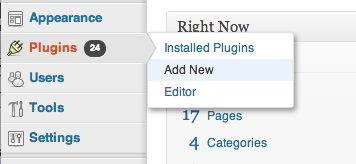
Download the MailChimp for WordPress Plugin. https://wordpress.org/plugins/mailchimp-for-wp/ or go to your WordPress Admin -> Plugins -> Add New -> (Search for) MailChimp for WordPress -> Download & Activate.
Sign up MailChimp website for free. http://mailchimp.com/
Create and name your list. Go to the ‘List’ menu on the sidebar. Create a list.
Go to your name at the top of the sidebar and select ‘Account’.
Create API Key. On the top menu click ‘Extras’ -> API keys -> ‘Create A Key’
Copy the API Key you just created and Paste it onto your ‘MailChimp for WP’ (your WordPress Admin -> MailChimp for WordPress -> MailChimp Settings) then ‘Save Changes’
Check and make sure you see ‘CONNECTED’ sign on ‘MailChimp API Settings’. Click on the button -‘Renew MailChimp lists’
Go to the admin -> ‘MailChimp for WP’ -> ‘Checkboxes’ and check on the ‘MailChimp Lists’ box and save.
Go to the admin -> ‘MailChimp for WP’ -> ‘Forms’and check on the ‘Lists this form subscribes to’ box and save.
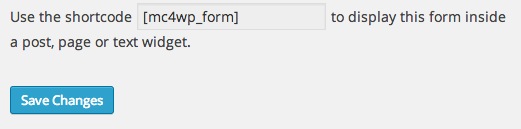
On the ‘Form’ setting page, copy the form shortcode below ‘Form mark-up’ and paste into any posts or pages you want to show your subscriber form, or you can use a MailChimp form widget to subscribe emails. (For widget users, go to the admin -> drag and drop ‘MailChimp Sign-Up Form’ to your widget sidebar.
Test your email. Once you actually test subscribing with your email, you would get a successful message “Thank you, your sign-up request was successful! Please check your e-mail inbox.”, but if miss any steps from above, you might see a message “oops. Something went wrong. Please try again later.”
Enjoy the MailChimp for WordPress plugin / widget!
We are facing a big transition in web design. In recent days, majority of well developed websites are made in responsive websites. Responsive design is the development responding to the environment based on screen size of a device. That being said the content elements must evolve to meet the technology as millions of bloggers are using Google Adsense technology to monetize their content.
Below is the HOW-TO guide to tweak the current Google Adsense code with the new responsive Google Adsense banners on your site. You don’t need to have a deep understanding of it’s frame work. Here’s an easy way to make it happen.
Our DEMO is here. Just look at the header section of this site. Do you see a wide horizontal banner (728 px x 90 px)? Try resize the browser to make it smaller and reload the page. Try even smaller like you are using a mobile and reload the page. Do you see the size of the ad is changing as it’s responding?
Let’s first take a look at your current Google Adsense Code below. You can get this code from Google Adsense Site → My ads (top menu) → “Get Code” from one of your ad unit.
Make sure you select “asynchronous” code type from the drop down menu.
<script async src="//pagead2.googlesyndication.com/pagead/js/adsbygoogle.js"></script>
<!-- NAME OF YOUR AD -->
<ins class="adsbygoogle"
style="display:inline-block;width:728px;height:90px"
data-ad-client="ca-pub-8255226778912403"
data-ad-slot="1054112722"></ins>
<script>
(adsbygoogle = window.adsbygoogle || []).push({});
</script>
1. You simply add a <div> around it.
2. Named the class to responsive-ad on the <div>
3. Added the class responsive-ad to <ins>. So it’s now adsbygoogle responsive-ad.
4. Changed the style to display:block
5. You must replace data-ad-client numbers and data-ad-slot numbers with yours..
6. Added data-format="auto" before closing </ins> tag.
7. Add <style> tags. You can tweak it whatever you want.
<div class="responsive-ad">
<script async src="//pagead2.googlesyndication.com/pagead/js/adsbygoogle.js"></script>
<!-- NAME OF YOUR AD -->
<ins class="adsbygoogle responsive-ad"
style="display:block"
data-ad-client="ca-pub-XXXXXXXXXXXXXXXX"
data-ad-slot="XXXXXXXXXX"
data-format="auto"></ins>
<script>
(adsbygoogle = window.adsbygoogle || []).push({});
</script>
</div>
<style type="text/css">
.responsive-ad { width: 320px; height: 50px; margin: 0 auto; }
@media (min-width:480px) { .responsive-ad { width: 468px; height: 60px; } }
@media (min-width:768px) { .responsive-ad { width: 728px; height: 90px; } }
</style>
The <style> above has set a minimum of 768px (and up) for desktops, a minimum of 480px (and up but below 768px) for tablet, and 320px (and up but below 480px) for mobile. You may feel free to change the numbers of min-width: as your site structure.
Enjoy your blogging and monetizing with the new Responsive Google Adsense!

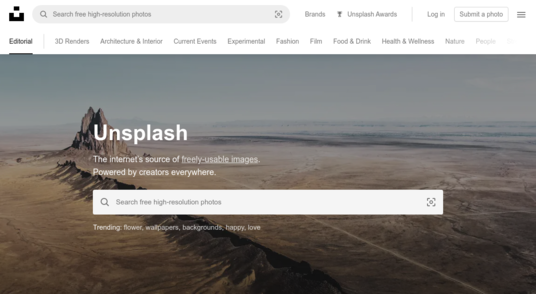
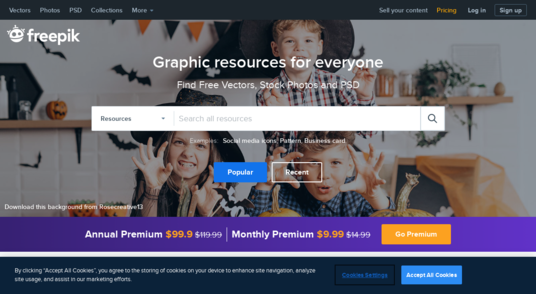
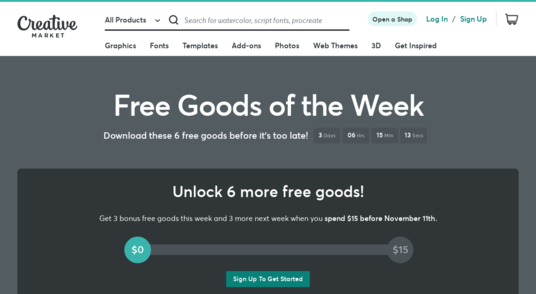
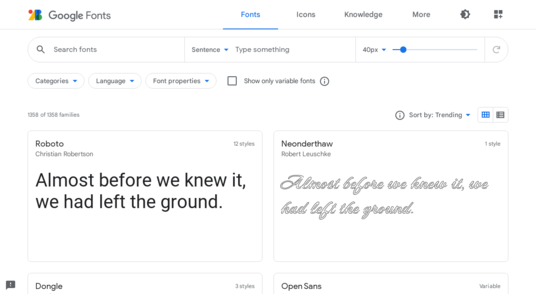
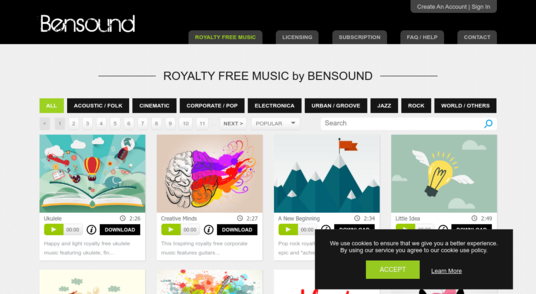
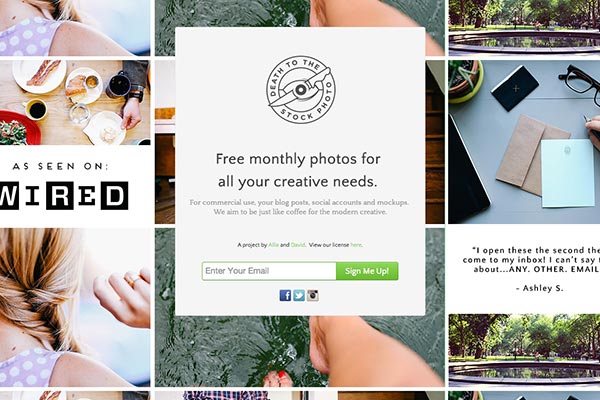
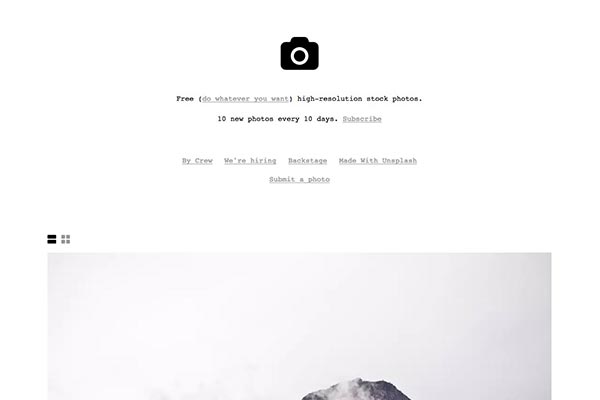
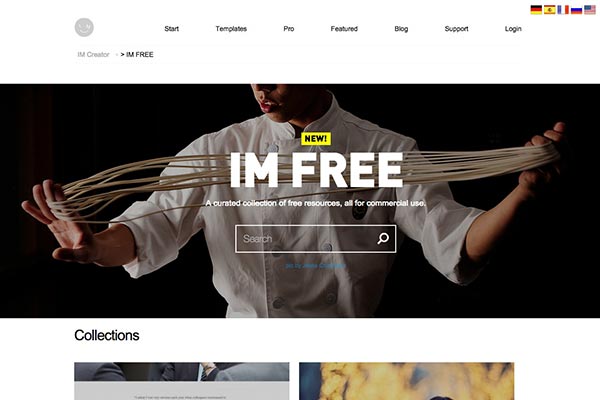
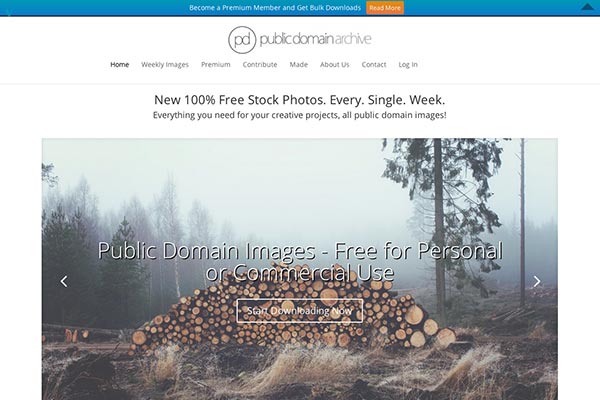
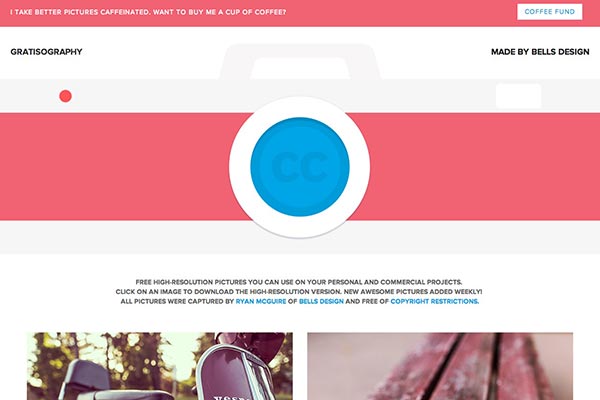
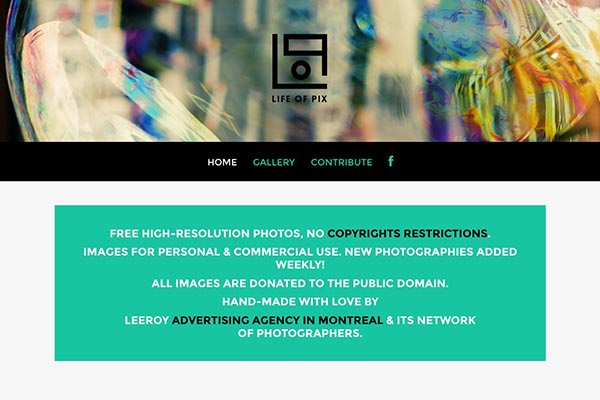
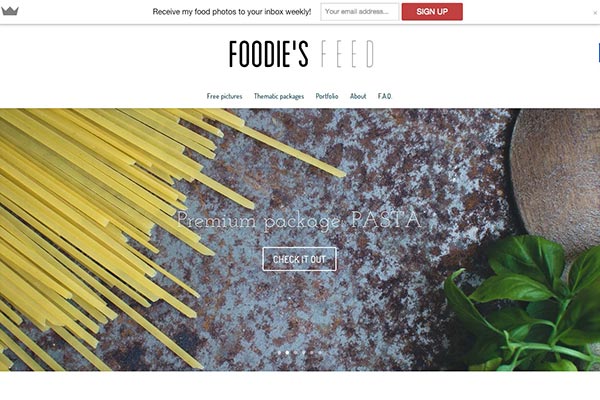
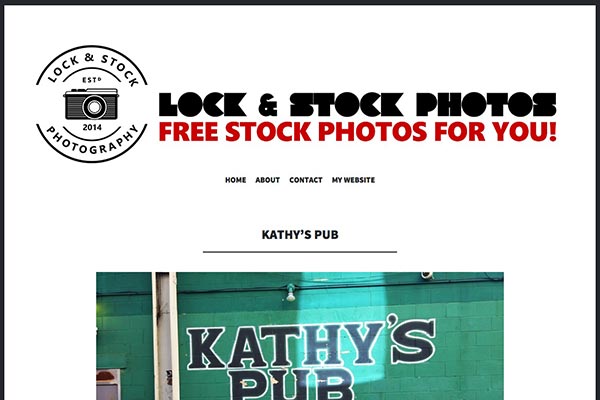
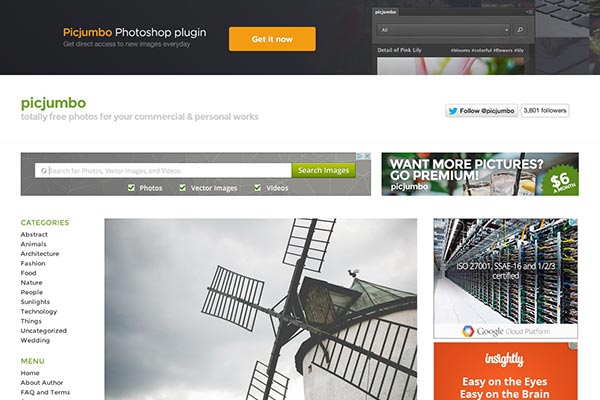
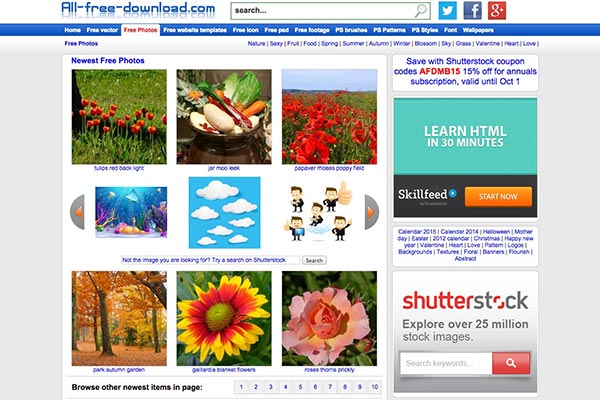
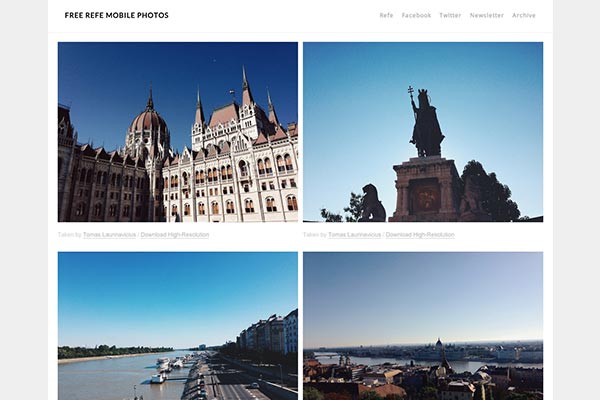
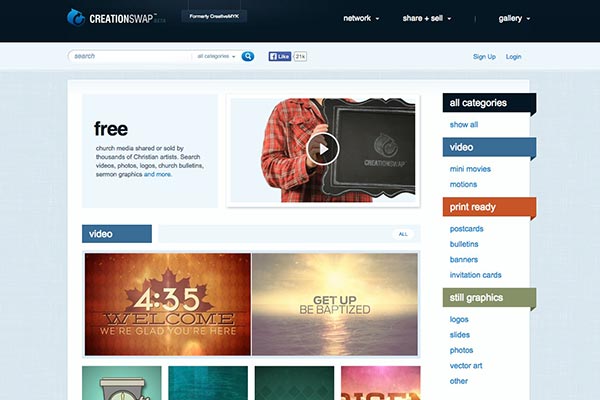
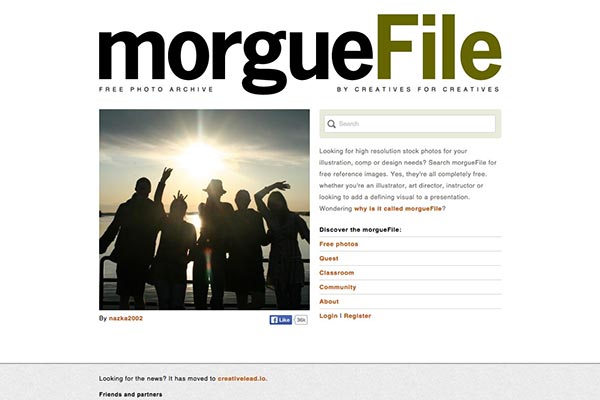
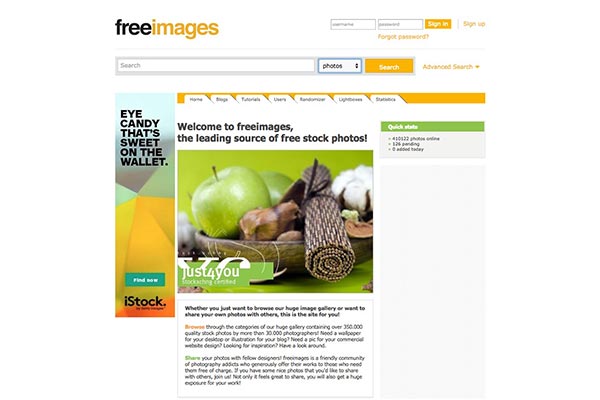
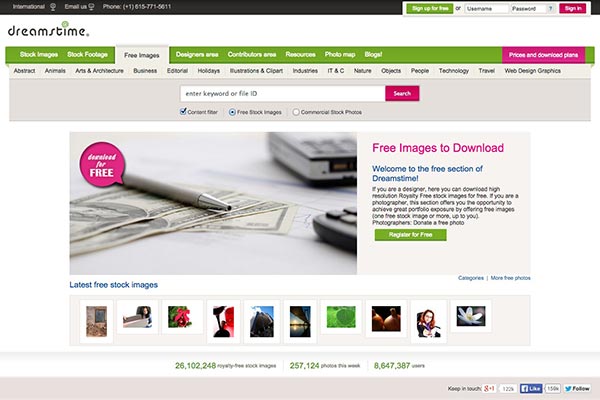
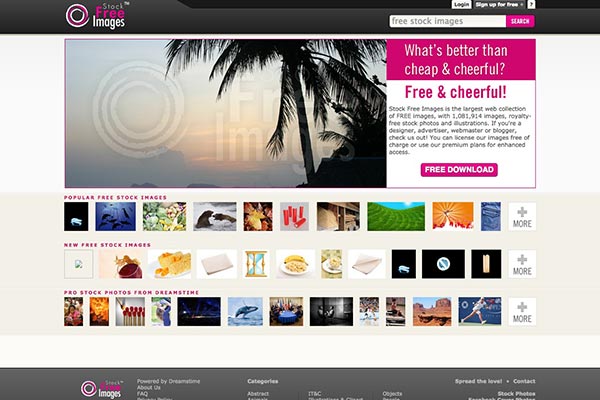
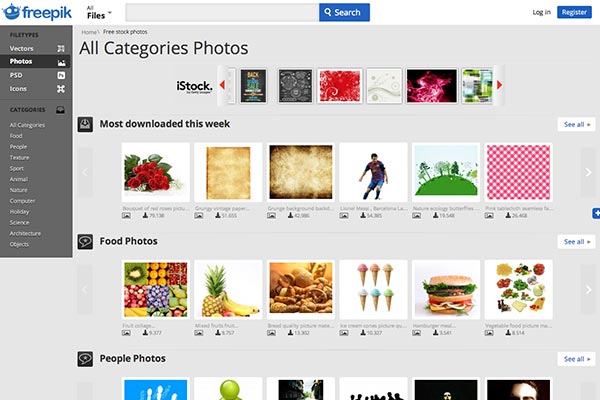
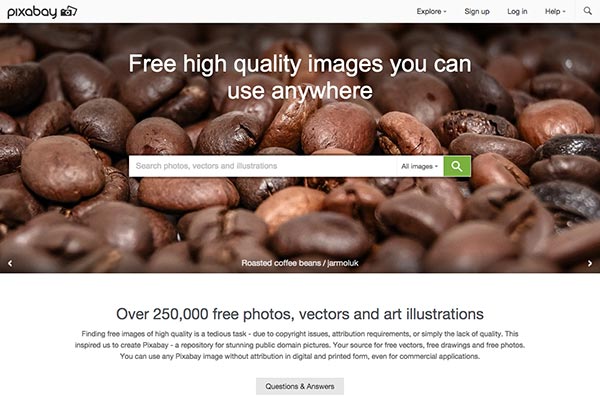
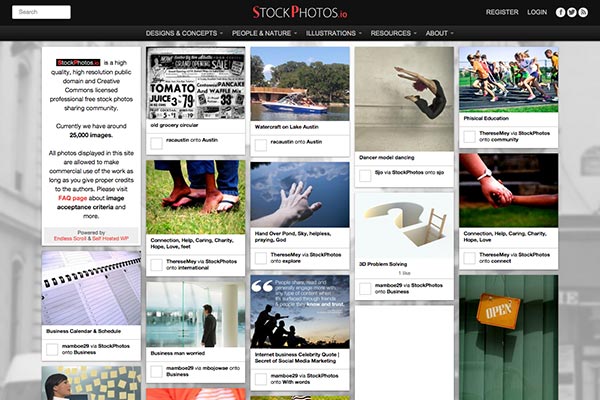
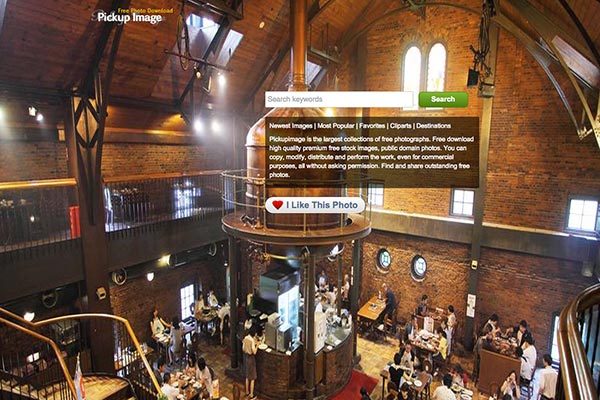
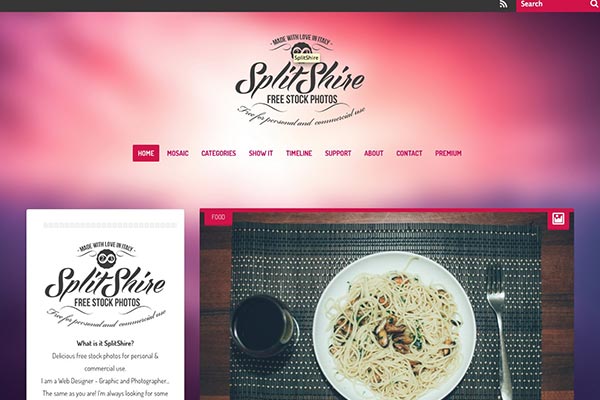
We need a good stock photo for free! There are many great paid stock photo websites out there like, Istockphoto.com or Shutterstock.com, but it’s always good to look for free stock photos before you actually spend your money. Why don’t you get some free stock images with awesome quality (in artistic perspective) which will make your design beautiful?
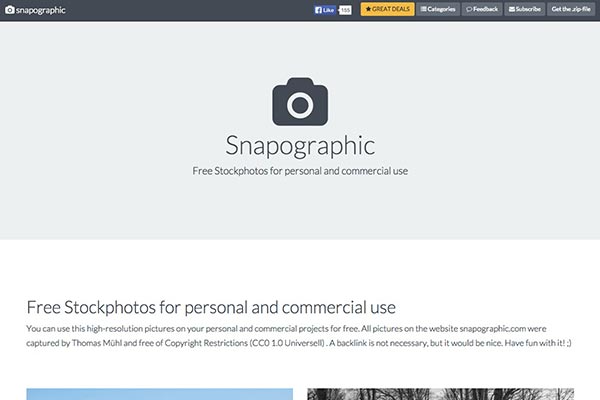
If you are an individual proprietor or freelancer like myself, who’s willing to spend some time to dig for a nice photography for your design, you’ll enjoy my “Best Stock Photo Sites for Free for Commercial Use” list below. I know you’d especially enjoy the “for Commercial Use” part, which means you don’t need to get permission for both personal / commercial use.
Here’s a very simple way to hide your featured image inside your post area, and it does NOT affect your actual featured image on your site’s front-page or the thumbnail image from the list. You are not deleting anything but simply hiding!
This post was originally for the theme “TwentyTwelve”, however, as many people have asked about other recent themes, I have organized the codes for the default WordPress themes from “Twenty Twelve” to “Twenty Sixteen”.
Copy the code below and paste into your CSS document.
.attachment-post-thumbnail { display:none; }
Copy the code below and paste into your CSS document.
.entry-thumbnail { display:none; }
Copy the code below and paste into your CSS document.
.post-thumbnail { display:none; }
.site-content .hentry.has-post-thumbnail:first-child { margin-top: 48px; }
For “Twenty Fourteen” theme, the margin of the top header gets weird after hiding the featured image. Adding the second line, margin-top: 48px will fix the issue.
Copy the code below and paste into your CSS document.
.post-thumbnail { display:none; }
.hentry.has-post-thumbnail { padding-top: 8.3333%; }
For “Twenty Fourteen” theme, the margin of the top header gets weird after hiding the featured image. Adding the second line, padding-top: 8.3333% will fix the issue.
Copy the code below and paste into your CSS document.
.post-thumbnail { display:none; }
For any questions, please leave a comment. Enjoy blogging!
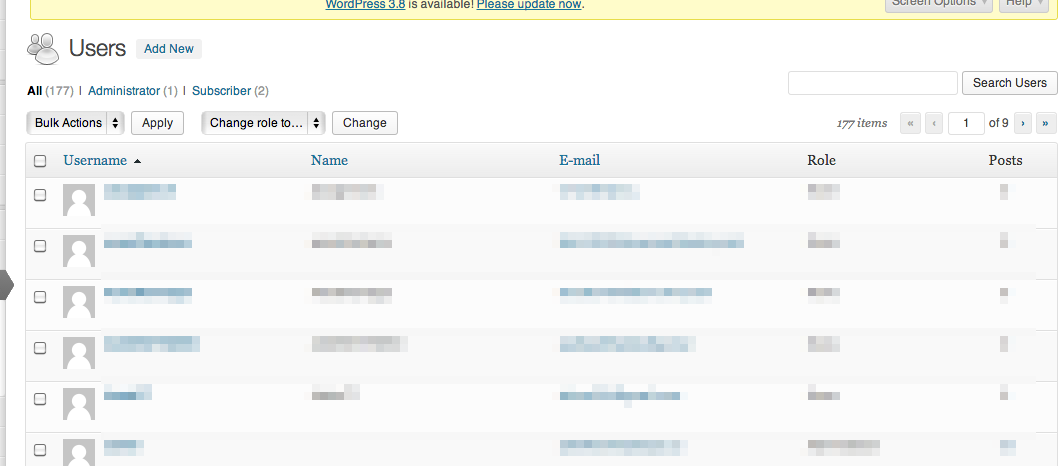
Here’s the a way to migrate Joomla users to WordPress users. I’ve used Joomla for some years and I still thinking it’s a great Content Management System. But however, I’m so much liking using WordPress for my site building I definitely needed to bring users from Joomla to WordPress. If you have hundreds of articles and migrating one from another it’s pain but still possible and manually doable, but when migrating users data, it just can’t.
I’ve tried to follow other tutorials, but for some reason it didn’t work out for me. So I’ve done some other testings and finally it worked out! Now, let me introduce to how to migrate Joomla users to WordPress users. The versions I’ve used is Joomla 1.5 to WordPress 3. Here’s how as simple as:
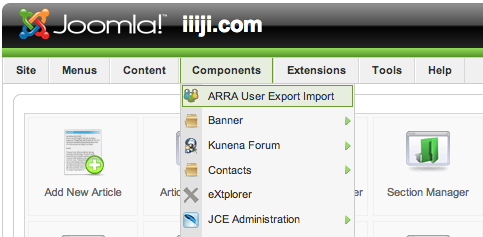
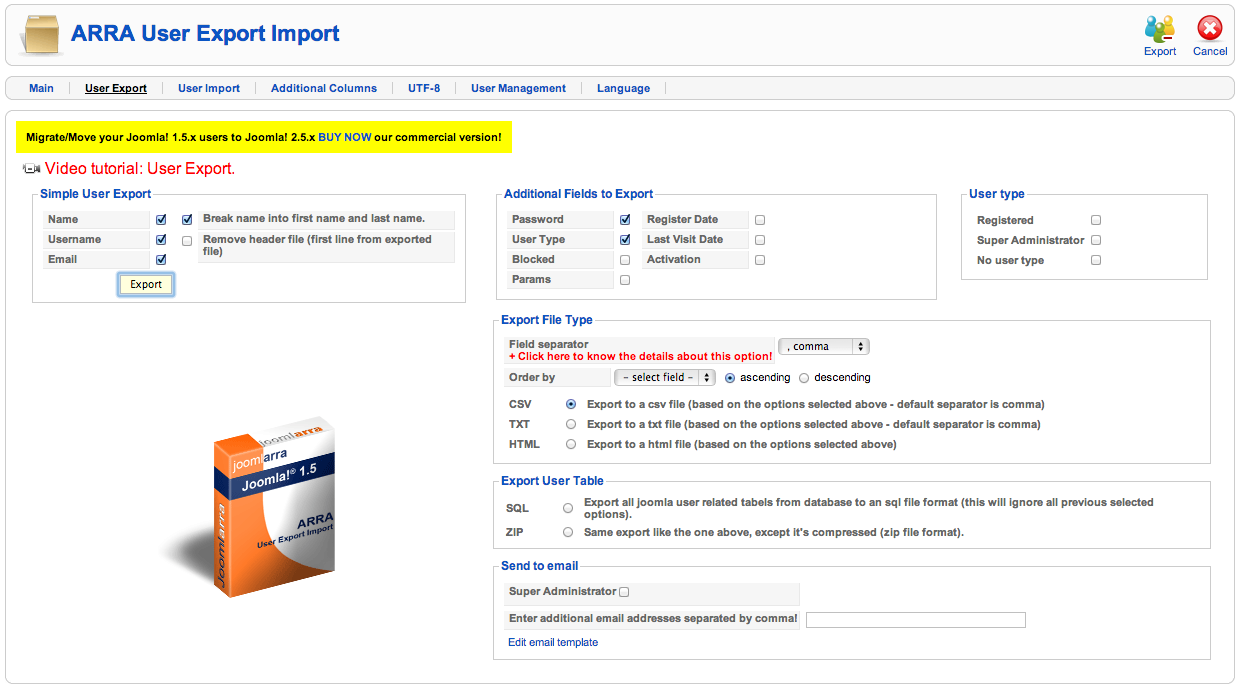
To export Joomla users data, use ‘ARRA User Export Import’ plugin.


Edit text as the following table (Top to Bottom) and save.
| first name | last name | username | password | usertype | |
| first_name | last_name | user_login | user_email | joomlapass | role |
*Sometimes Microsoft Excel won’t save it right. I recommend Dreamweaver.